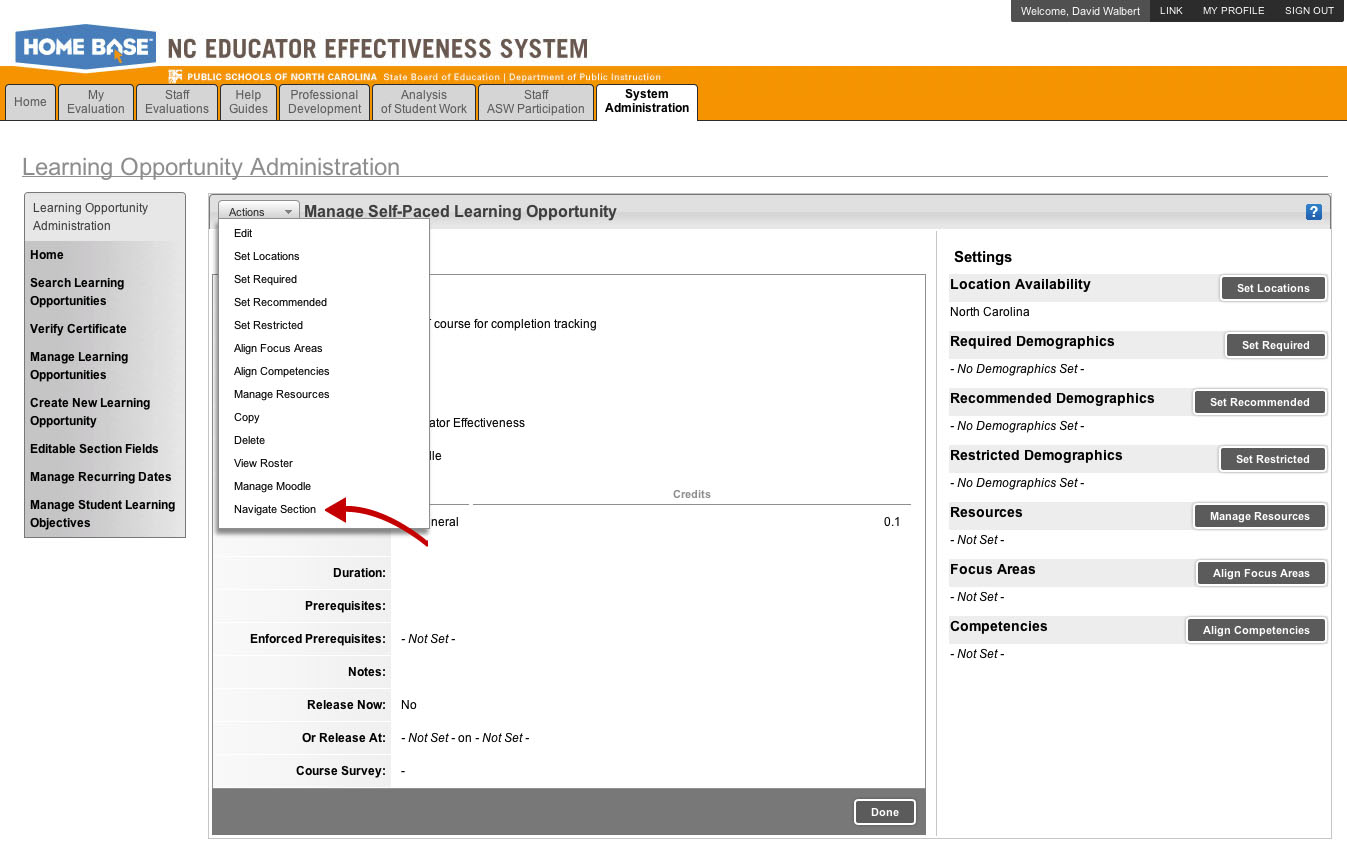
Go to your course in Moodle
On the Manage Self-Paced Learning Opportunity screen, from the Actions menu,
select Navigate Section.
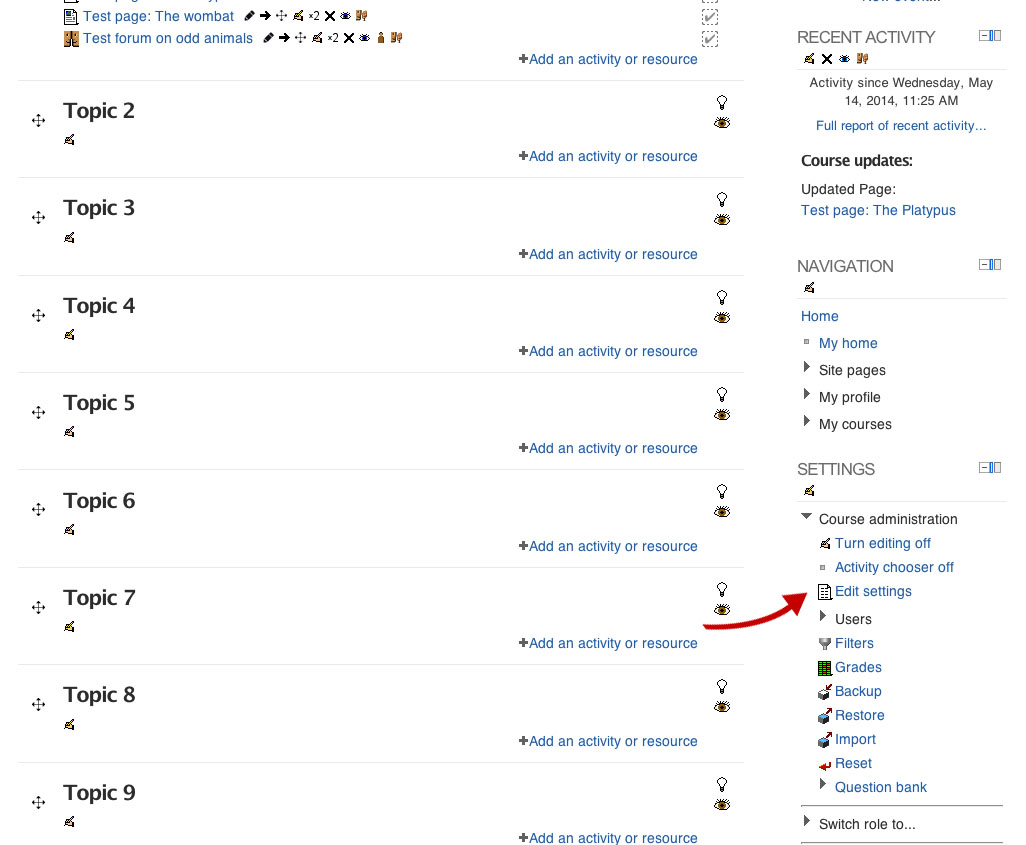
Edit the course settings
In your course in Moodle, find the Settings tab in the right-hand column. Select
Edit Settings.
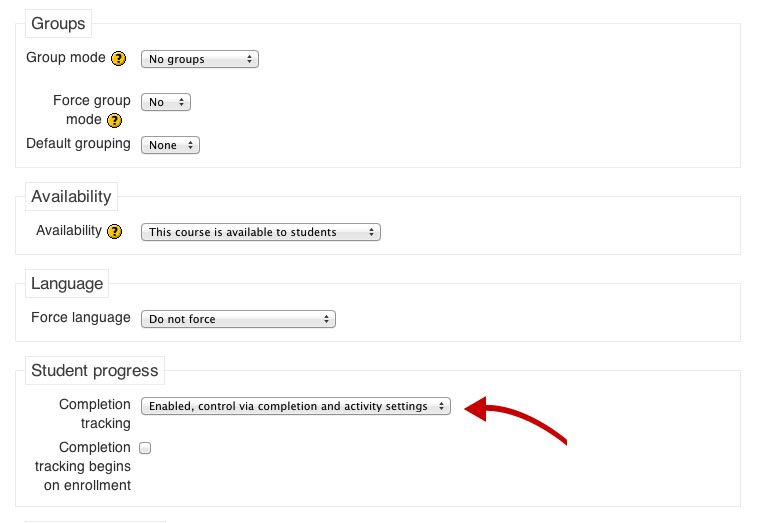
Enable completion tracking
Scroll down the Course Settings page until you find the section labeled Student Progress.
Select Enabled and save the settings.
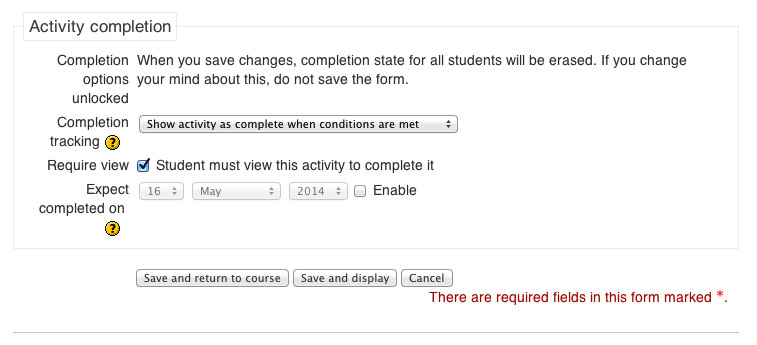
Set completion options for each page
As you create or edit each page or activity in the course, you’ll see a section labeled
Activity Completion. Select Show activity as complete when conditions are met,
and then specify the conditions. (Options for conditions will vary with the type of activity.)
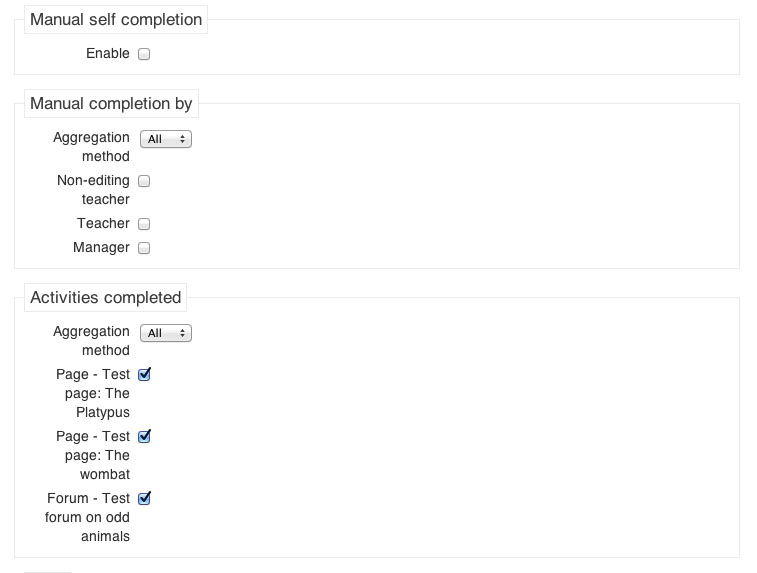
Select activities to require
When you have finished creating your course, return to the Settings tab in the right-hand column.
You’ll see a new option, Completion Tracking. Select this option.
On the Completion Tracking screen, under Activities Completed, check the activities you want
to require users to complete in order to receive credit for the course. Save the settings.

Enable tracking in HomeBase
Finally, return to the record of your course in HomeBase. Select Manage Moodle from the
Actions menu.
On the Manage Moodle screen, check the first check box (the description of the checkbox does not match its functionality).
Set the minimum required score to 0. Do not change the Moodle Course ID. Click Save & Return.
Then click Done (do not click edit).